In the room, the service sounded good. Then someone sends you a message from home: the stream was all vocals, the band disappeared, the pastor was too loud and the singing was too quiet, and the lips did not match the words.
Almost every church that starts streaming goes through this, because the sound that works in a room is not the sound that works in earphones. The fix is not a new microphone or laptop. It is a second mix, made for the people who are not in the building, and a short routine for checking it.
This guide covers why church streams sound bad, and then how to fix it step by step on a Behringer X32 or Midas M32, and on a Midas MR18, with OBS (the free streaming software most churches use) at the end of the chain.
Why does our church live stream sound bad?
There are five usual causes, and they often come together.
1. You are sending the front-of-house mix
The front-of-house mix (FOH, the mix for the room) is built for a room that already has a band in it. The drums are loud on their own. The bass amp and guitar amp fill the stage. The choir is singing acoustically. So in the PA you only add what the room is missing, which is mostly vocals and keys.
Send that mix to the stream and the viewer gets exactly that: loud vocals, faint keys, almost no drums, bass or choir, and a pastor who sounds much louder than the songs. It is the most common reason a church stream sounds thin.
2. There are no room mics
In the building you hear the congregation sing, clap and respond. On the stream, with no microphones pointed at the room, the service sounds like a band in an empty studio, and every "amen" disappears.
3. Too much or too little compression
Too little, and the viewer turns up for the sermon, then gets blasted by the praise. Too much, and the sound pumps: room noise swells between phrases and every cough is loud.
4. Levels clipping into the stream box or OBS
Clipping is when a signal is too loud for the next device: the top of the waveform is cut off and it sounds harsh and crackly. The common causes are a line-level desk output plugged into a camera or interface mic input, an interface gain turned up too far, or the OBS meter sitting in the red.
5. Echo and audio out of sync
An echo on the stream usually means the same sound is arriving twice: once from the desk and once from a camera's own microphone, or from an OBS source that should be off. Audio out of sync usually means the video takes longer to reach OBS than the audio does, so the words arrive before the lips move.
The fix: a separate stream mix
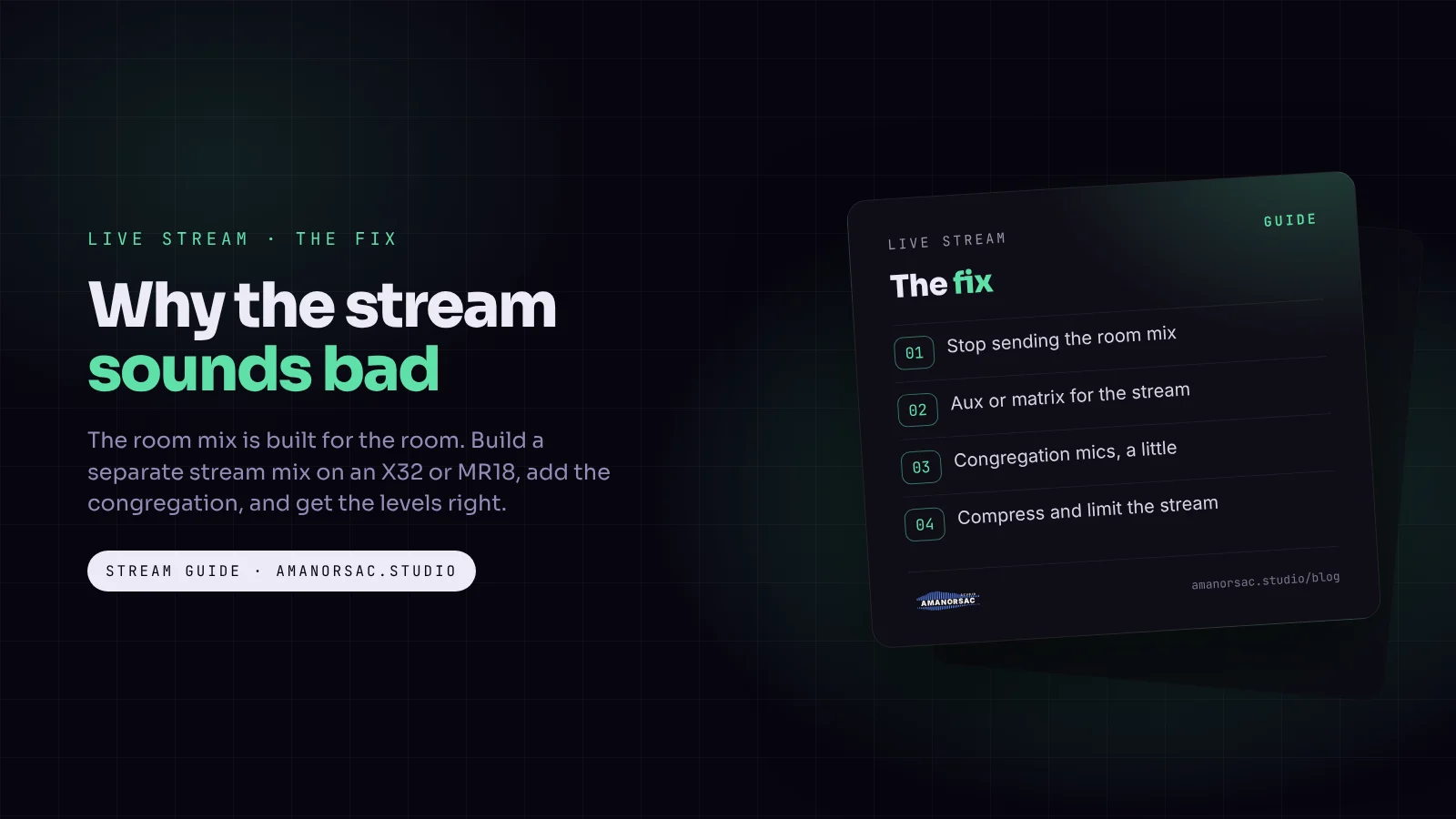
The single biggest improvement is a separate mix for the stream, built on its own bus. It uses the same microphones and the same channels as FOH, but with its own balance: more band, more choir, room mics added, and its own compression.
On a digital desk this costs nothing. You already have spare buses.
Pre-fader or post-fader?
Every send from a channel to a bus is taken from a point in the channel called the tap point.
- Pre-fader means the send ignores the channel fader. Moving the FOH fader does not change the stream. That is right for monitor mixes.
- Post-fader means the send follows the channel fader. When you push the lead vocal up for a quiet line, the stream gets the same move, at its own balance.
If one person runs the desk, which is most churches, use post-fader. Your fader moves in the room carry over to the stream, a muted mic is muted on both, and you only have to set the stream balance once. A dedicated stream operator can use pre-fader for full independence.
How do I set up a stream mix on an X32 or M32?
The X32 has 16 mix buses and 6 matrices, so there is room. A pair of mix buses gives you the most control. Menu names move a little between firmware versions, but the steps are the same.
- Pick two mix buses, for example 15 and 16, link them as a stereo pair and name the pair STREAM.
- Set the sends to post-fader. The tap point is set in the bus configuration under Setup, and each channel's sends can also choose their tap.
- Start from a copy of FOH. Set every channel's send to the stream bus at unity (0 dB). With post-fader sends, the stream now matches the room mix.
- Add what the room adds. Raise the sends for the instruments that are quiet in the PA because the room carries them: kick, snare, bass, guitar, the choir. Leave the lead vocal where it is, and listen to the stream bus in headphones while you do it.
- Add the room mics to the stream bus only (see below).
- Put a compressor on the bus (settings below).
- Send the bus to the stream computer, from a pair of physical outputs into an audio interface, or over the USB card. Route only the stream bus, not the main mix as well.
The stream bus does not follow the main LR fader, so if you pull the room down, the stream stays where it was.
Can I use a matrix instead?
Yes. Feed a matrix from the main LR mix and add a bus of room mics, and a bus with a little extra band if you need it. It is quick, but you can only add to the main mix, not rebalance it, so the bus method usually sounds better.
How do I set up a stream mix on an MR18?
The MR18 has six aux buses, so a stereo stream mix uses two of them and leaves four for monitors. If that is too few monitor mixes, a mono stream on one aux is far better than sending the main mix.
- Link aux 5 and 6 as a stereo pair and name it STREAM.
- Set the bus to post-fader in the bus or send settings, depending on your app version.
- Set every channel's send to unity, so the stream starts as a copy of the main mix.
- Raise the drums, bass, guitar and choir on the stream bus while listening in headphones.
- Add the room mics to the stream bus only.
- Use the bus compressor on aux 5 and 6.
- Take aux outputs 5 and 6 from the back of the MR18 into the stream computer's interface. Some firmware also lets you assign a bus to a USB send in the routing page; check yours.
If you are new to the MR18, my MR18 guide covers gain, buses and snapshots, and the iPad and router guide covers a stable connection. For the stream computer's interface, see my comparison of eight interfaces.
How do I add ambient mics?
Ambient mics (room mics) are microphones pointed at the congregation, sent only to the stream.
- Use a pair of whatever condensers you have, small-diaphragm if possible.
- Place them high, near the front, facing the congregation, away from the main speakers.
- Pan them left and right for width.
- High-pass them around 150 to 200 Hz. Below that they mostly pick up rumble and PA bass.
- Never route them to the main mix. Turn off their main LR assignment.
- Keep them low under the band, raise them for congregational singing, clapping and response, and pull them right down for the sermon.
What compression should the stream bus have?
- Compressor on the stream bus: ratio around 2:1 or 3:1, a medium attack so the drums keep their punch, a medium release, and the threshold set so the loudest praise gets 3 to 6 dB of reduction.
- Limiter at the very end. OBS has a free Limiter filter. Add it to the audio source and set the threshold to -1 dB. It should almost never act; it catches the shout or cymbal crash you did not expect.
- Do not over-squeeze the speech. The pastor's channel already has its own compression. Stacking more on top makes the room noise between sentences swell.
If the sermon is still much quieter than the music, raise the pastor's send to the stream bus rather than adding more compression.
How loud should a church live stream be?
Online loudness is measured in LUFS (loudness units relative to full scale): how loud the audio sounds over time, not just how high the peaks go. The big platforms normalise loudness, which means they turn very loud audio down to play at a similar level to everything else. A stream louder than the rest gains nothing; it just gets turned down, with its peaks already squashed.
So aim for two things:
- A consistent level. Praise, worship, sermon and announcements at roughly the same loudness, so nobody at home reaches for the volume.
- Peaks below -1 dBFS. dBFS is decibels relative to full scale, where 0 is the point of clipping.
In OBS, the meter for your stream audio should sit with speech in the middle of the meter and the loudest music touching the yellow, never the red. If you have a loudness meter, I aim for around -16 LUFS over a whole service. That is my working habit, not a platform rule, and a steady level matters more than the exact number.
How do I fix echo and audio out of sync in OBS?
Echo
- Mute every audio source in OBS except the desk feed. Capture cards often carry the camera's own microphone as a separate source. Mute or disable it.
- Turn off Desktop Audio in Settings, Audio, unless you are playing videos from that computer.
- Check audio monitoring. In OBS, a source set to "Monitor and Output" plays through the computer's monitoring device. Make sure that is your headphones, not a speaker in the room.
- Pull the room mics down. If the stream sounds like a cave, the ambient mics are too loud.
- Check the sample rate. Set OBS to the same rate as your interface or desk (48 kHz is usual). A mismatch can cause crackles and drift.
Out of sync
Video usually takes longer to reach OBS than audio does, so audio arrives early.
- Open Advanced Audio Properties in OBS (the gear icon in the audio mixer).
- Find the Sync Offset column for the desk audio source. A positive number delays the audio.
- Do a clap test. Stand in front of the camera and clap once, sharply. Record a short clip in OBS and step through it frame by frame. If you hear the clap before you see the hands meet, add delay.
- Adjust in small steps and test again until the clap and the sound match. Offsets vary a lot between setups, which is why you measure instead of guess.
- Re-test whenever something changes: a new camera, a new capture card, different resolution.
A monitoring routine for every Sunday
The stream is the only mix you cannot hear in the room, so you have to go and listen to it.
Before the service
- Record thirty seconds of the band rehearsing in OBS and listen back on closed headphones.
- Do the clap test.
- Check the meters: speech in the middle, peaks out of the red.
- Check the stream bus in mono, using your desk's mono check or a phone speaker. Many people will listen on a phone.
During the service
- Put headphones on the stream feed at the start of praise, the first song of worship, and five minutes into the sermon.
- Watch the actual stream on a phone, with earphones, on mobile data. That is what most viewers hear, with the delay and the platform's processing included.
After the service
- Listen to the archive on Monday, on a phone speaker and in a car.
- Write down one thing to fix next Sunday, and save the settings in your scene or snapshot.
If one person is running the whole desk, every minute they are not adjusting monitors is a minute they can listen to the stream. On an X32 or M32, our free app MixMyIEM lets each musician set their own in-ear mix from a phone, which frees up exactly that time.
What if the internet or the power is poor?
A lot of churches stream on weak upload speeds and expensive data. In Nigeria, mobile data prices rose sharply in early 2025, with MTN's 1 GB bundle going from N200 to N350 (TechCabal).
- Drop the video before the audio. YouTube recommends around 4 Mbps for 720p at 30 frames per second, against about 10 Mbps for 1080p (YouTube Help). If your upload struggles, 720p with clean audio is a better service than 1080p that buffers.
- Consider audio-only. Some Nigerian churches have moved to the audio-only platform Mixlr to save data and avoid buffering (Techpoint Africa). Everything in this guide applies there too, and it matters even more when audio is all there is.
- Know the Facebook rules. To go live on Facebook since June 2024, the account must be at least 60 days old, a Page or professional profile needs at least 100 followers, and a single live video can run for up to 8 hours (Meta for Developers). For an all-night vigil, plan to split the stream.
- Protect the power. Put the desk, the router and the stream computer on a UPS, so a power cut does not end the stream. If you run from an inverter, a pure sine wave model is advised: modified sine wave inverters can make audio gear buzz (Samlex), and that buzz goes straight to the stream.
Common live stream audio mistakes
- Sending the main mix to the stream. It is built for the room, not for headphones.
- Checking the stream only on the desk. Listen to the actual stream, on a phone, with the delay.
- Two audio sources live in OBS. The camera's microphone plus the desk feed is the usual cause of echo.
- Chasing loudness. Platforms normalise loudness; a level, consistent stream sounds better than a loud one.
- Mixing the stream on the room speakers. You will always under-mix the band. Use headphones.
Questions people ask
Why does our church live stream sound bad when the room sounds good?
Usually because the stream gets the room mix, which leaves out the band and choir that the room already carries. Build a separate stream mix on its own bus with more band, room mics and its own compression.
How do I get a separate mix for the live stream on an X32?
Link two mix buses as a stereo pair, set the sends to post-fader, start every send at unity, then raise the band and choir and add room mics. Send that bus to the stream computer through an interface or the USB card.
Should the stream mix be pre-fader or post-fader?
Post-fader if one person runs the desk, so your fader moves and mutes carry over to the stream. Pre-fader if a dedicated operator mixes the stream on their own.
How do I fix audio out of sync in OBS?
Open Advanced Audio Properties and add a positive Sync Offset to the desk audio source. Measure it with a clap test and adjust in small steps until sound and picture match.
Why is there an echo on our church live stream?
Usually the same sound is reaching OBS twice, often from the camera's own microphone on the capture card as well as the desk. Mute every audio source except the desk feed, and turn the room mics down if the stream sounds like a cave.
How loud should a church live stream be?
Aim for a consistent level across the whole service, with the loudest peaks just below -1 dBFS. Platforms normalise loudness, so making it louder gains nothing.
Do we need room mics for a church live stream?
Yes, if you want the congregation on the stream. A pair of mics facing the congregation, sent only to the stream bus, makes it sound like worship, not a studio.
More on stream sound, gear and settings in the church live stream audio guide.
Written by Stephen Amanor Sackey — producer, mix engineer and music director, Virginia. More about the studio.
Studio news
Struggling to move forward in your music?
Guides from a working music director, written for the churches we actually work in: church sound, worship teams, free sheets for the desk, and the apps, with the free one first. A few letters a month at most, and every one has a link to stop.
You will get one email asking you to confirm. Your first app is 15% off when you join. Privacy.