
Most guides to streaming a church service assume a fibre line in the office and a budget for a dedicated encoder. A lot of churches in Ghana, Nigeria and Kenya have neither. They have a MiFi, a phone, a laptop that belongs to someone in the media team, and a data bundle that has to last the month.
That works. Plenty of churches stream every week this way. But it only works if you know how much data the stream will use before you start, set the stream for the connection you actually have, and plan for the two things that will happen sooner or later: the network slows down and the power goes off.
Here is how to work out the data, test your upload, pick your settings, and cope when it goes wrong mid-sermon.
How much data does a church live stream use?
You can work this out in advance, and you should, because the answer decides your settings and your budget.
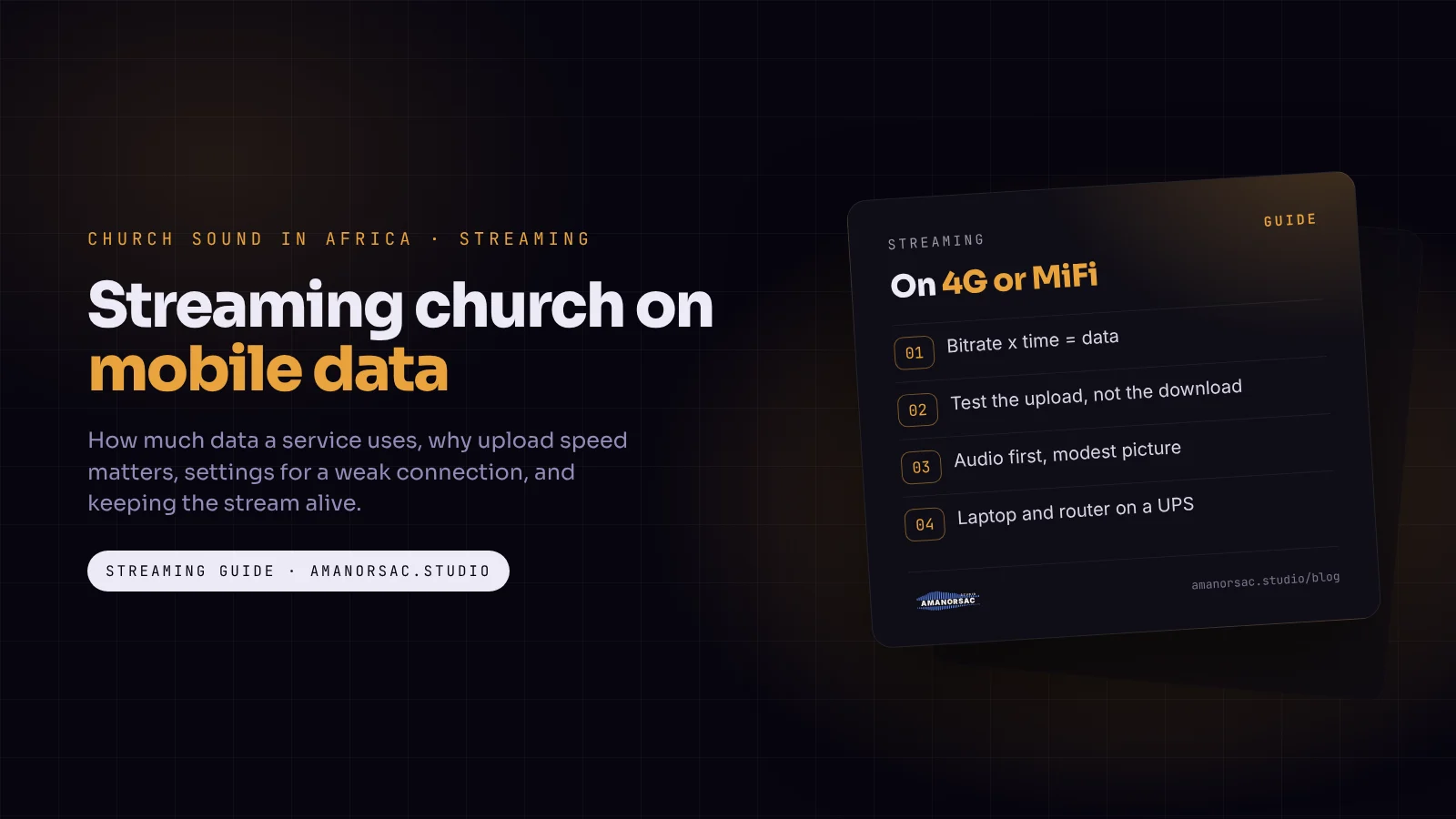
Streaming uses data at the rate you set in your streaming software, called the bitrate. It is measured in megabits per second (Mbps). Data bundles are sold in megabytes and gigabytes. There are 8 bits in a byte, so:
Data used = bitrate × time ÷ 8
That gives a handy shortcut. 1 Mbps for one hour uses about 450 MB. (1 megabit a second is 0.125 megabytes a second, and there are 3,600 seconds in an hour.) Multiply your bitrate by 450 and you have megabytes per hour.
Some worked examples, video only:
- 4 Mbps (720p, the top of Facebook's range for 720p at 30 frames a second): about 1.8 GB an hour. A three-hour service is about 5.4 GB.
- 2 Mbps (a modest 720p on Facebook, or a generous 480p): about 900 MB an hour. A three-hour service is about 2.7 GB.
- 1 Mbps (480p): about 450 MB an hour. A three-hour service is about 1.35 GB.
- 128 kbps audio only: about 58 MB an hour. A three-hour service is under 200 MB.
Add the audio's 58 MB an hour to the video figures, then a margin of ten per cent or so for overhead and the test you run before the service.
Where do those video numbers come from? Facebook's own Live API documentation lists 1,500 to 4,000 kbps for 720p at 30 frames a second, 600 to 2,000 kbps for 480p and 400 to 1,000 kbps for 360p, with 128 kbps audio preferred (Meta for Developers). YouTube's help page asks for more: for 720p at 30 frames a second on the common H.264 codec it lists a minimum of 3 Mbps and a recommended 8 Mbps, and for 480p a minimum of 0.4 and a recommended 4 Mbps (YouTube Help). On mobile data you will be near the minimum, not the recommendation, and that is fine.
Two more things eat data that people forget:
- Streaming to several platforms from the laptop. Each destination is a separate upload, so two platforms doubles the data. Pick one, or use a restreaming service that takes one upload and sends it on from the cloud.
- Everything else on the same connection. Updates, cloud sync, someone checking the stream on the same MiFi. Turn off updates and sync on the streaming laptop, and keep the MiFi password to yourself.
Why does upload speed matter more than download?
When you watch a video, you download. When you stream a service, you upload. Mobile networks are built for people watching, so upload is almost always much slower than download, and it is the number that decides whether your stream holds.
Most speed tests show both. Ignore the download figure. Look at the upload.
How to test it properly:
- Test from the exact spot where the streaming device will sit, not from the office or the car park.
- Test at service time. A network that is fine on Tuesday afternoon can be slower on Sunday morning, when the building fills with phones on the same mast.
- Test several times over ten or fifteen minutes and write down the lowest upload, not the best. Your stream has to survive the worst minute.
- Test each network you have. If you have SIMs from two different networks, one may be much better in your building than the other.
Then choose your bitrate from the lowest figure. My rule is to set the total stream bitrate, video plus audio, at no more than about half to two-thirds of the lowest upload you measured. If the worst upload test shows 3 Mbps, stream at about 1.5 to 2 Mbps. That headroom is what stops the stream buffering every time the network has a bad moment.
A few things that often improve upload:
- Move the MiFi up and towards a window. Height and fewer walls between it and the mast help.
- Use a 4G router with an external antenna socket if you stream every week and the signal is weak. An antenna mounted outside can make a real difference.
- Keep the streaming laptop close to the MiFi, or use a cable if the router has a network port.
- Keep a second SIM on a different network ready to swap in.
What resolution and bitrate should we stream at on a weak connection?
Lower than you think. A smooth 480p stream is better to watch than a 720p stream that freezes every two minutes, and much cheaper for the people watching it on their own data.
As a starting point, for a church on 4G or a MiFi:
- Good, steady upload (5 Mbps or more at its worst): 720p at 30 frames a second, about 3 Mbps video, 128 kbps audio.
- Average upload (2.5 to 5 Mbps at its worst): 480p (854 × 480) at 30 frames a second, about 1 to 1.5 Mbps video, 128 kbps audio.
- Weak upload (under 2.5 Mbps at its worst): 480p or 360p at 30 frames a second, about 0.6 to 1 Mbps video, 128 kbps audio. Or consider audio only.
In OBS, the free streaming software most churches use, set these in Settings, then Output and Video:
- Rate control: CBR (constant bitrate). It keeps the upload steady, which mobile networks handle better than sudden peaks. YouTube asks for it too.
- Keyframe interval: 2 seconds. YouTube recommends 2 and says not to go above 4 (YouTube Help).
- Output resolution: set it to the resolution you are streaming, so OBS is not sending a bigger picture than you need.
- Frame rate: 30. Sixty frames a second uses more data and you do not need it for a church service.
- Audio bitrate: 128 kbps. This is what both YouTube and Facebook suggest, and it is where the money should go.
YouTube may warn that your bitrate is below its recommendation. If the stream is steady and the picture acceptable, live with the warning. If the picture breaks up, drop to 480p rather than raising the bitrate.
Keep the picture simple. A still camera takes far less bitrate to look good than a pan across a busy stage with flashing lights. The more the picture changes, the more data each frame needs.
Why should the sound come first?
People will watch a soft picture for two hours. They will not listen to bad sound for ten minutes. If you have to give something up on a weak connection, give up resolution, never audio.
That has two parts.
The bitrate. Keep the audio at 128 kbps even when the video drops to 360p. It is a tiny share of the data and it is most of the experience.
The mix itself. Most church streams sound bad not because of the connection but because they are fed from the main room mix, made for a room full of people and speakers. A separate mix for the stream, from an aux or matrix on the desk, fixes most of that. Why your church live stream audio sounds bad walks through it, and if you are buying an interface to get the desk into the laptop, the interface comparison has the spec that matters.
Should we stream audio only?
For some churches, yes. It is worth thinking about seriously if your upload is weak, your data is expensive, or your congregation watches on their own data and complains about the cost.
Audio-only streaming has a real following in Nigeria. TechPoint Africa reported that Mixlr, an audio-only live platform, became a key platform for Nigerian churches, which moved to it to escape video buffering and high data use. Audio uses less data than video, so it costs less for churches and their listeners (TechPoint Africa).
The arithmetic agrees. At 128 kbps, a three-hour service is under 200 MB to send and under 200 MB for each listener to receive. The same service at 720p could be several gigabytes for you and for anyone who watches it in full.
A middle way: audio only every week, video for special services, or record the video locally and upload it later.
Can we go live on Facebook straight away?
Not necessarily. Since June 2024, Meta has required that a Facebook account is at least 60 days old before it can go live, and that a Page or professional mode profile has at least 100 followers. A single broadcast also cannot run for more than 8 hours (Meta for Developers).
So set up a new Page months before you need it, and get the congregation to follow it.
YouTube has its own rules. Turn on live streaming in YouTube Studio well ahead of the first service, because the first activation can take up to 24 hours, and check the current requirements for streaming from a phone, which are different from streaming with OBS from a computer.
What happens when the power goes off during the stream?
Plan for it, because in much of West Africa it is a question of when. Ghana had a grid failure in July 2026 and a widespread outage in August 2026 (Citi Newsroom), and Nigeria's national grid collapsed about eleven or twelve times in 2024 (Channels TV).
When the power drops, the PA and the lights go, and usually the generator takes a minute to come in. The stream does not have to go with them.
- Put the streaming chain on a UPS. The laptop has a battery, but the MiFi or router, the camera, the audio interface and a small mixer may not. A small UPS behind the desk keeps them alive through the changeover.
- Use a pure sine wave UPS or inverter for audio gear. Modified sine wave units can make audio equipment buzz (Samlex).
- Keep the MiFi charged and plugged in. Most have their own battery. Make sure it is full before the service, not at five per cent and running off the mains.
- Know what happens to the sound. If the desk loses power, the stream loses its audio even if the laptop stays on. Put the desk on the UPS too if it is small enough, or have a backup: a microphone or a phone on the pulpit that can be switched into OBS in a few seconds.
- Agree who does what. The stream operator does not leave the laptop to deal with the generator.
How do we stream on a tiny budget with just a phone?
One phone, a tripod and a cable can stream a service. It is not perfect, but it costs little beyond the data.
- Use a second phone or a MiFi as the hotspot, so the streaming phone is not also handling the connection. Put the streaming phone on Do Not Disturb so a phone call does not interrupt the stream.
- Mount it on a tripod, at the back or the side, wide enough to show the pulpit and the platform. Do not hand-hold it for two hours.
- Get the sound from the desk, not the phone's microphone. The phone's own mic will hear the room, the speakers and the congregation clapping beside it. Take a feed from an aux output on the mixer. A desk's line output is far hotter than a phone's microphone input, so use an attenuating cable made for phones, or a small USB audio interface that the phone supports.
- Power it the whole time. A long stream drains a phone fast. Plug it into a power bank or a charger on the UPS.
- Keep it cool. Phones slow down or stop recording when they overheat. Keep the phone out of direct sun and off hot surfaces.
- Test it midweek at the same time of day, with the same phone and SIM.
What do we do when the connection drops?
It will happen. What matters is the next minute.
- Record locally at the same time. OBS can stream and record together. If the stream fails, you still have the whole service and can upload it later. Record at a higher quality than you stream, if the laptop can handle it.
- Turn on automatic reconnect. In OBS it is under Settings, Advanced. Set it to keep retrying. If the connection comes back quickly, most platforms carry on with the same broadcast.
- Have a holding slide ready. A simple scene that says "We will be back shortly" is better than a frozen frame of the pastor mid-sentence.
- Drop the bitrate if it keeps dropping. If the stream is reconnecting every few minutes, the bitrate is too high for the network right now. Stop, lower it, and restart. A second, smaller stream is better than a broken big one.
- Tell people. Post a short message in the church WhatsApp group or in the stream's comments. People forgive a drop. They do not like guessing.
- Write it down afterwards. When it dropped, what the upload was, what you changed. After a month you will know your network.
How much will the data cost us?
It depends on your network, your bundle and your country, and prices change, so work it out from the bundle you actually buy. Take the data per service from the worked examples above, multiply by the number of services a month, and multiply by the price of a gigabyte on your bundle.
Prices move. In Nigeria, TechCabal reported in February 2025 that MTN's 1 GB plan had gone from N200 to N350 after the tariff increase that year (TechCabal). A setting that was affordable last year may not be this year, which is one more reason to stream at the lowest bitrate that looks and sounds acceptable.
Your congregation pays too. Tell members they can turn the quality down on their side to save their own data.
Questions people ask
How much data does it take to live stream a church service?
Multiply your bitrate in Mbps by 450 to get megabytes per hour. A 2 Mbps stream uses about 900 MB an hour, so a three-hour service at that setting uses about 2.7 GB, plus a little for audio and overhead.
Can I live stream church with a MiFi?
Yes, if the upload speed in your building is good enough. Test the upload at service time from the spot where the MiFi will sit, and set your total bitrate at no more than half to two-thirds of the lowest result.
What upload speed do I need to stream church on YouTube?
YouTube lists a minimum stream bitrate of 3 Mbps for 720p at 30 frames a second and 0.4 Mbps for 480p. Your measured upload should be comfortably above the bitrate you choose, ideally about double, so the stream survives bad moments.
Why does our church live stream keep buffering?
Usually because the bitrate is too high for the upload you have at that moment, or because other devices are using the same connection. Lower the bitrate, stream to one platform, and keep the connection for the stream only.
Why can't our church Page go live on Facebook?
Since June 2024, Meta requires the account to be at least 60 days old and the Page or professional profile to have at least 100 followers. Set the Page up well before you need it.
Is audio-only streaming worth it for a church?
If your data is expensive or your upload is weak, yes. A 128 kbps audio stream uses about 58 MB an hour, a small fraction of video, and churches in Nigeria have moved to audio-only platforms such as Mixlr for that reason.
More on running sound and streams in African churches, from power to noise rules, in church sound in Africa.
Written by Stephen Amanor Sackey — producer, mix engineer and music director, Virginia. More about the studio.
Studio news
Struggling to move forward in your music?
Guides from a working music director, written for the churches we actually work in: church sound, worship teams, free sheets for the desk, and the apps, with the free one first. A few letters a month at most, and every one has a link to stop.
You will get one email asking you to confirm. Your first app is 15% off when you join. Privacy.